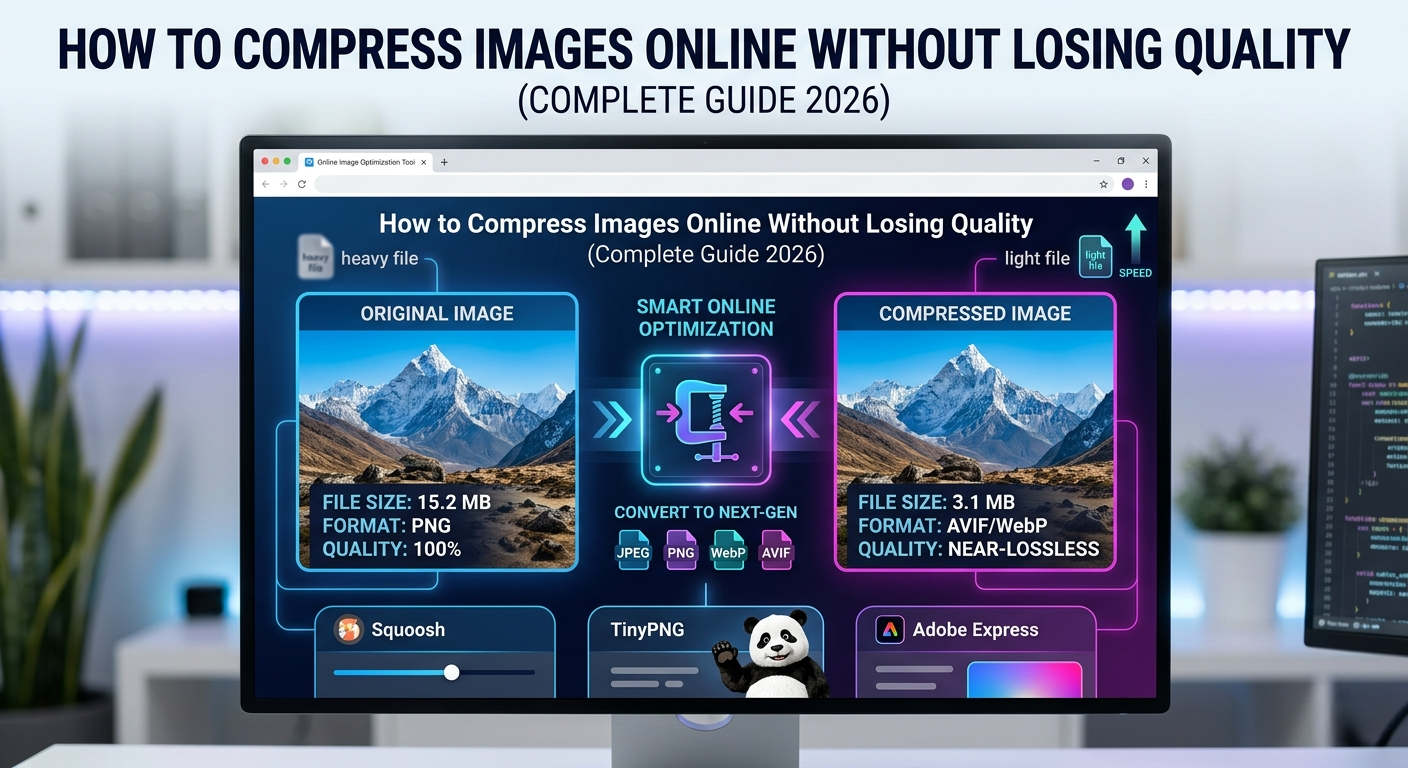
How to Compress Images Online Without Losing Quality (Complete Guide)
Learn how to compress images online for free without losing quality. Reduce image file size for faster websites, better SEO, and improved Google PageSpeed scores — no software needed.
Images are one of the biggest contributors to slow website load times. In fact, studies show that images typically account for 50 to 75 percent of a webpage's total file size. If your images are not optimized, your website will be slow — and slow websites lose visitors, rank lower on Google, and generate less revenue.
The good news is that you can dramatically reduce your image file sizes without any visible loss of quality, using free online tools that work directly in your browser. In this guide, we'll explain everything you need to know about image compression and how to do it correctly.
What Is Image Compression?
Image compression is the process of reducing an image's file size by removing redundant or unnecessary data. There are two main types:
- Lossless compression: Reduces file size without any quality loss. Best for PNG files, logos, and graphics with sharp edges or text.
- Lossy compression: Achieves greater size reduction by permanently removing some image data. Best for JPEG and WebP photographs.
Why Image Optimization Matters for SEO
Google uses page speed as a ranking factor. The Core Web Vitals metrics — specifically Largest Contentful Paint (LCP) — are directly impacted by how quickly your images load. Unoptimized images cause slower page load times, higher bounce rates, lower Google PageSpeed Insights scores, reduced rankings, and worse user experience on mobile devices.
Choosing the Right Image Format
- JPEG (JPG): Best for photographs and images with many colors and gradients. Supports lossy compression.
- PNG: Best for images that require transparency, logos, icons, and screenshots with sharp text.
- WebP: Google's modern format — 25–35% smaller than JPEG at equivalent quality. Supported by all modern browsers.
- SVG: Best for icons, logos, and illustrations. Vector-based, scales perfectly.
How to Compress Images Online for Free
Step 1: Choose your image file from your computer. Start with a high-resolution original.
Step 2: Upload to an online image compressor (like the one at Toolrivo).
Step 3: Select compression level. For photographs, a quality setting of 75 to 85 percent produces excellent results.
Step 4: Download the compressed image and compare with the original.
Step 5: Consider converting to WebP for an additional 25–35% size reduction.
Image Compression Best Practices
Target file sizes: Hero/banner images under 200 KB, blog post images under 100 KB, thumbnails and icons under 20 KB.
Use descriptive, keyword-rich file names (e.g., "compress-image-online-free.jpg" instead of "IMG_2847.jpg"). Always add descriptive alt text to your images.
Common Mistakes to Avoid
Using the wrong format (PNG for photos), over-compressing (visible artifacts), skipping compression entirely, uploading original camera photos (3–10 MB).
Conclusion: Image compression is one of the simplest and highest-impact optimizations for your website's speed, SEO, and user experience. Start optimizing your images today with Toolrivo's free image compressor — supports PNG, JPG, and WebP with instant results, directly in your browser, no login required.